UI / UX case study · Web app

Find Any Photograph, Share Any Set

A fast, account-free archive of commercial and editorial photography: browse by client, search by what's in the picture, then gather photos into ordered sets that can be downloaded or shared as a page of their own.
Role
Design, front-end, tooling
Platform
Responsive web, touch and keyboard
Scale
About 1,800 photos in 50+ collections
Built with
HTML, CSS and vanilla JavaScript; static hosting
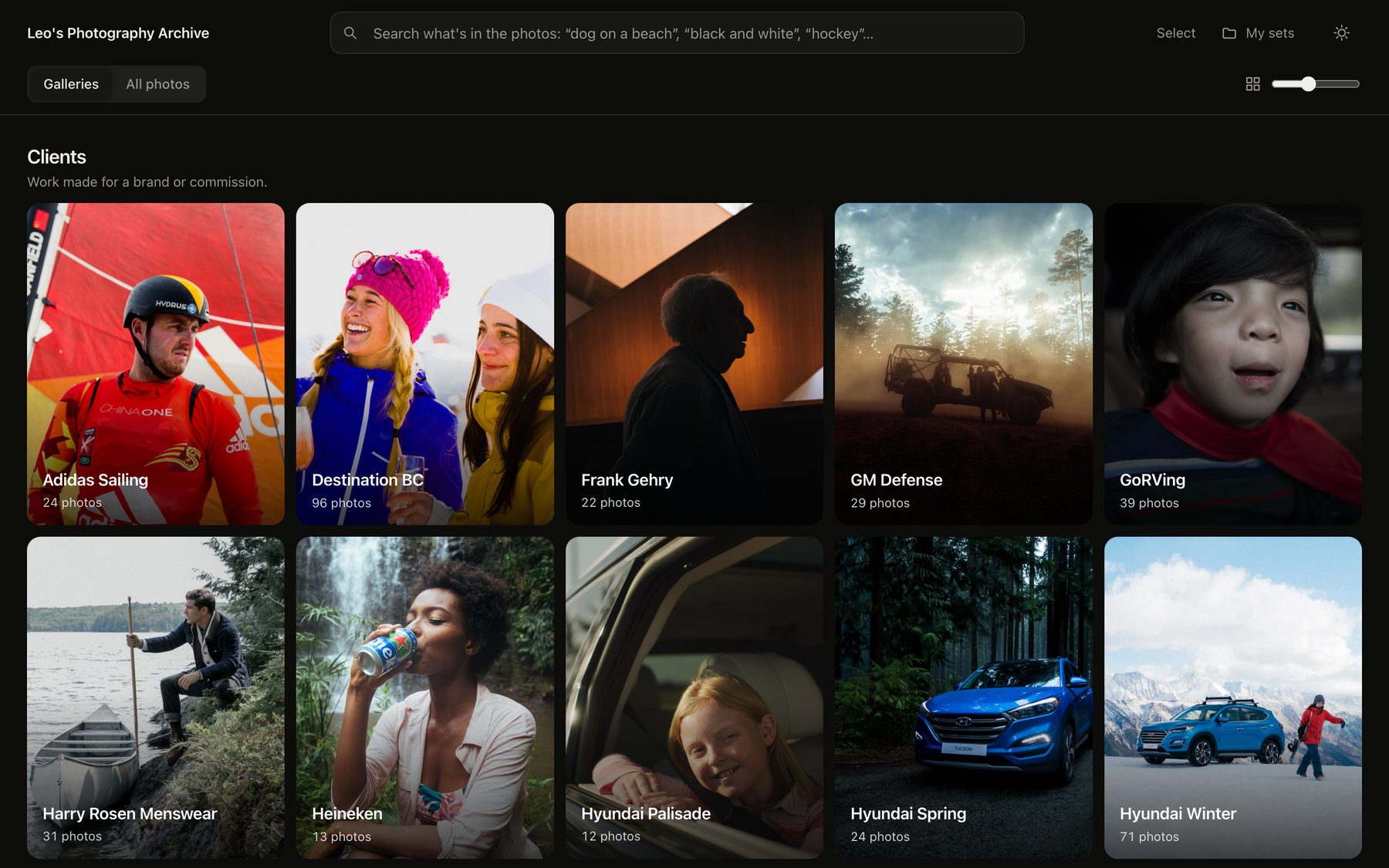
The Photography Archive home screen, a grid of client poster cards in dark mode

The brief

Show The Work, Get Out Of The Way

The problem. A working photographer's archive spans many clients and years. Folders and file names make sense to the photographer, not to the art buyer or brand representative who needs "something sporty, black and white, with people" by the end of the day.

The goal. Make any photo findable in a few seconds without knowing how the archive is organised, and let people leave with what they came for: a download, or a curated, ordered selection they can send on.

  • No sign-up. Visitors are busy; nothing should stand between them and the photos.
  • Photos first. Quiet chrome, true proportions, minimal copy.
  • Everything shareable. Every view and every selection can become a link.
01

Two Ways In: Galleries Or Everything

The front page is organised the way a client thinks (by brand), with a second door for people who just want to browse or search the whole archive.

  • Clients and Bins. Collections are split into work made for a brand and personal or editorial work sorted by subject, each with a one-line description.
  • Poster cards. Each collection is represented by a single chosen photo and a photo count, so the page reads like a contact sheet rather than a folder list.
  • Galleries / All photos. A two-option segmented control keeps the choice between browsing and searching visible at all times.
Galleries view: Clients grid of poster cards in dark mode

02

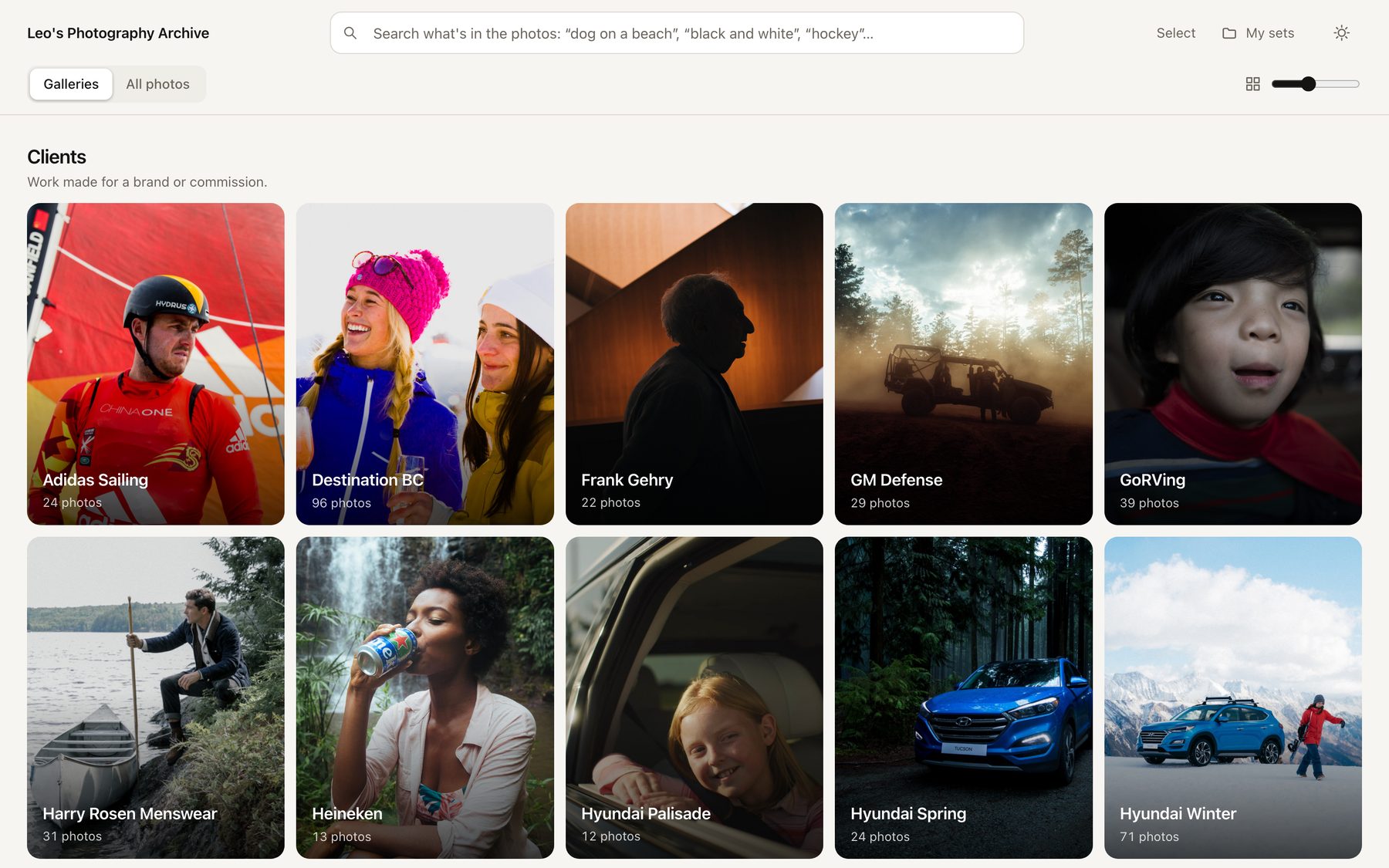
Dark By Default, Light On Request

A photography archive should disappear behind the pictures. The interface is built from a small set of colour tokens, so both themes come from the same rules.

  • Neutral surfaces. Warm greys instead of pure black or white, so photos keep their contrast and colour.
  • Follows the system, remembers the choice. The theme respects the visitor's OS setting until they pick one with the toggle.
  • Reduced-motion and reduced-transparency modes. Animations and the frosted header are switched off for people who ask for that.
Galleries view in light mode

03

Search That Understands What's In The Picture

Photos are searched by what they show, not by file name. Visitors type the way they talk and the archive meets them halfway.

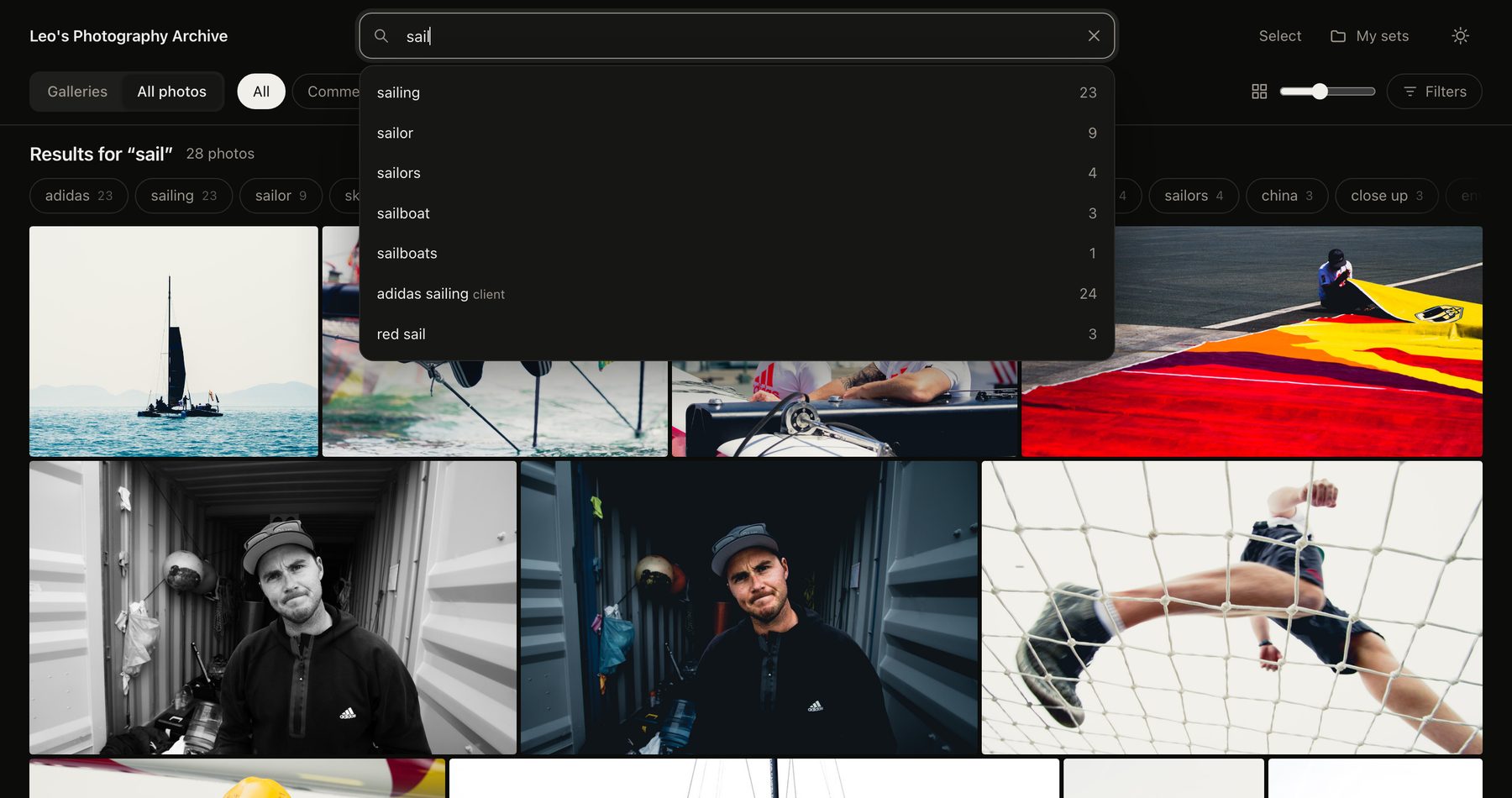
  • Live suggestions with counts. Suggestions mix tags, genres and client names, labelled by kind and with the number of photos behind each.
  • Forgiving matching. Word stems and a synonym table mean 'sailing', 'sailor' and 'sailboat' find each other, and 'bw' or 'monochrome' means black and white.
  • Weighted fields. Genre, title and collection count for more than tags, and file names for least, so the top results are the ones that match best.
Search box with live suggestions for the word 'sail'

04

Results That Keep Narrowing

Search is a conversation: every result page offers the next useful refinement instead of a dead end.

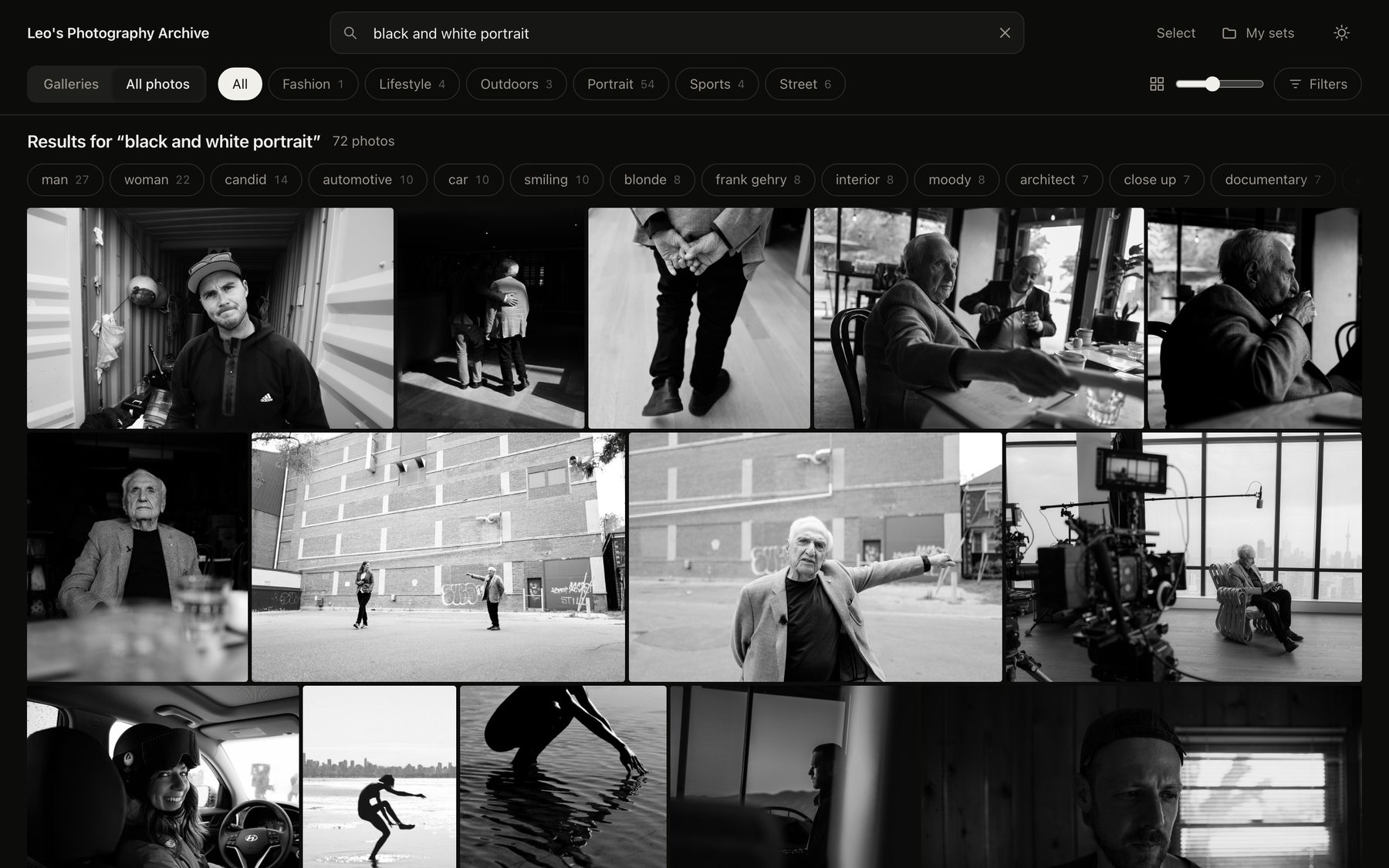
  • Genre tabs with counts show how a query splits across the archive before anything is clicked.
  • A tag cloud built from the current results offers the most common related words as one-tap refinements.
  • Justified rows. Photos keep their true proportions and fill each row edge to edge, so nothing is cropped and portraits and landscapes sit together.
  • Partial matches and empty states. If no photo matches every word, the closest matches are shown and labelled; with no matches at all, suggested searches replace the blank page.
Results for 'black and white portrait' with genre filters and a tag cloud

05

Filters Kept Out Of The Way

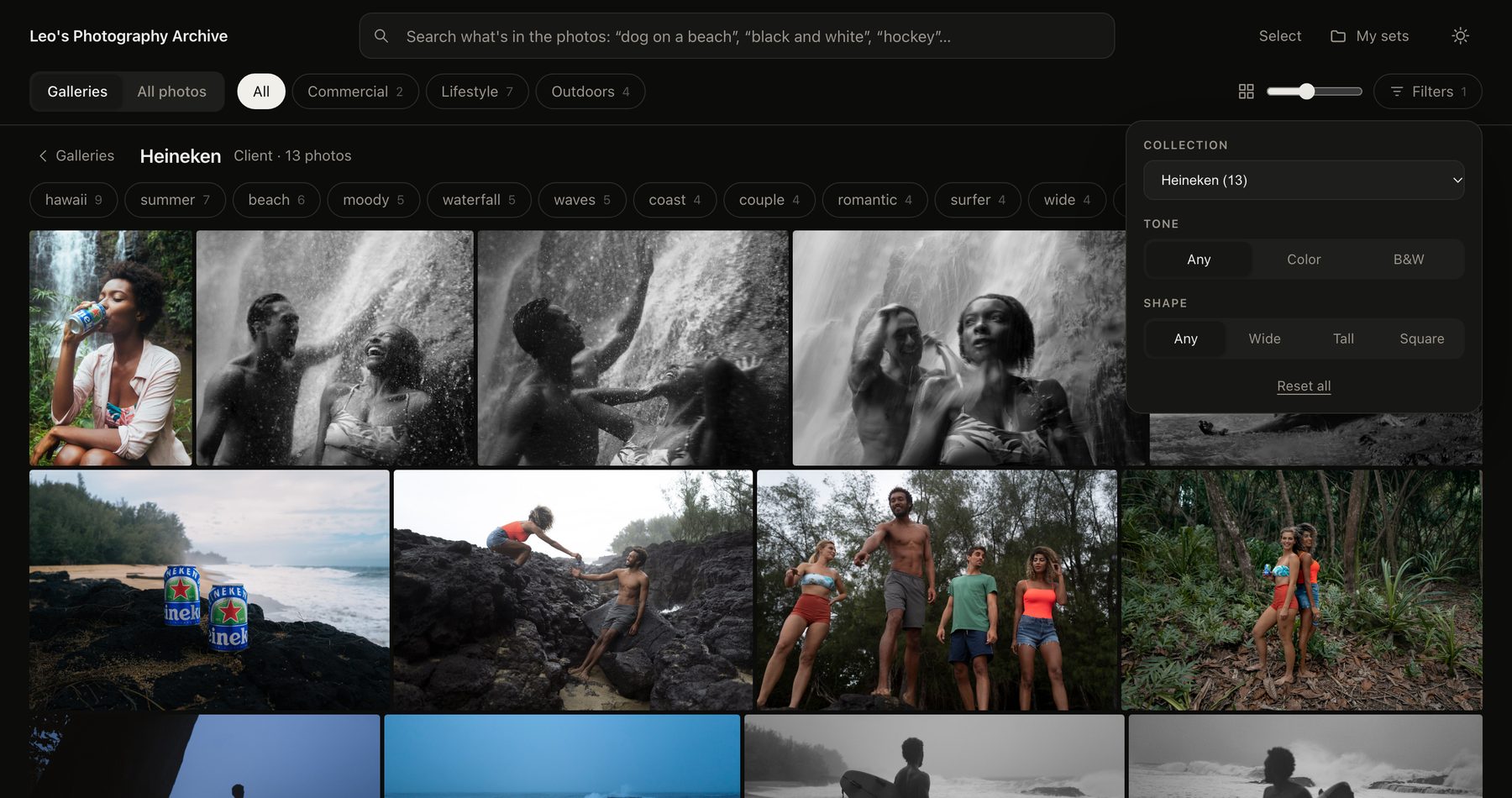
Most visitors never need filters, so they live behind a single button and report how many are active.

  • Tone and shape. Colour vs black-and-white and wide, tall or square, which are the distinctions photo buyers actually reach for.
  • A size slider changes photo density, with separate memory for gallery cards and photo grids.
  • Every view is a link. Search, filters and the open photo all live in the URL, so any view can be bookmarked or sent to someone, and the browser's back button closes the viewer.
Gallery view with the Filters popover open showing collection, tone and shape

06

A Viewer Built For Looking

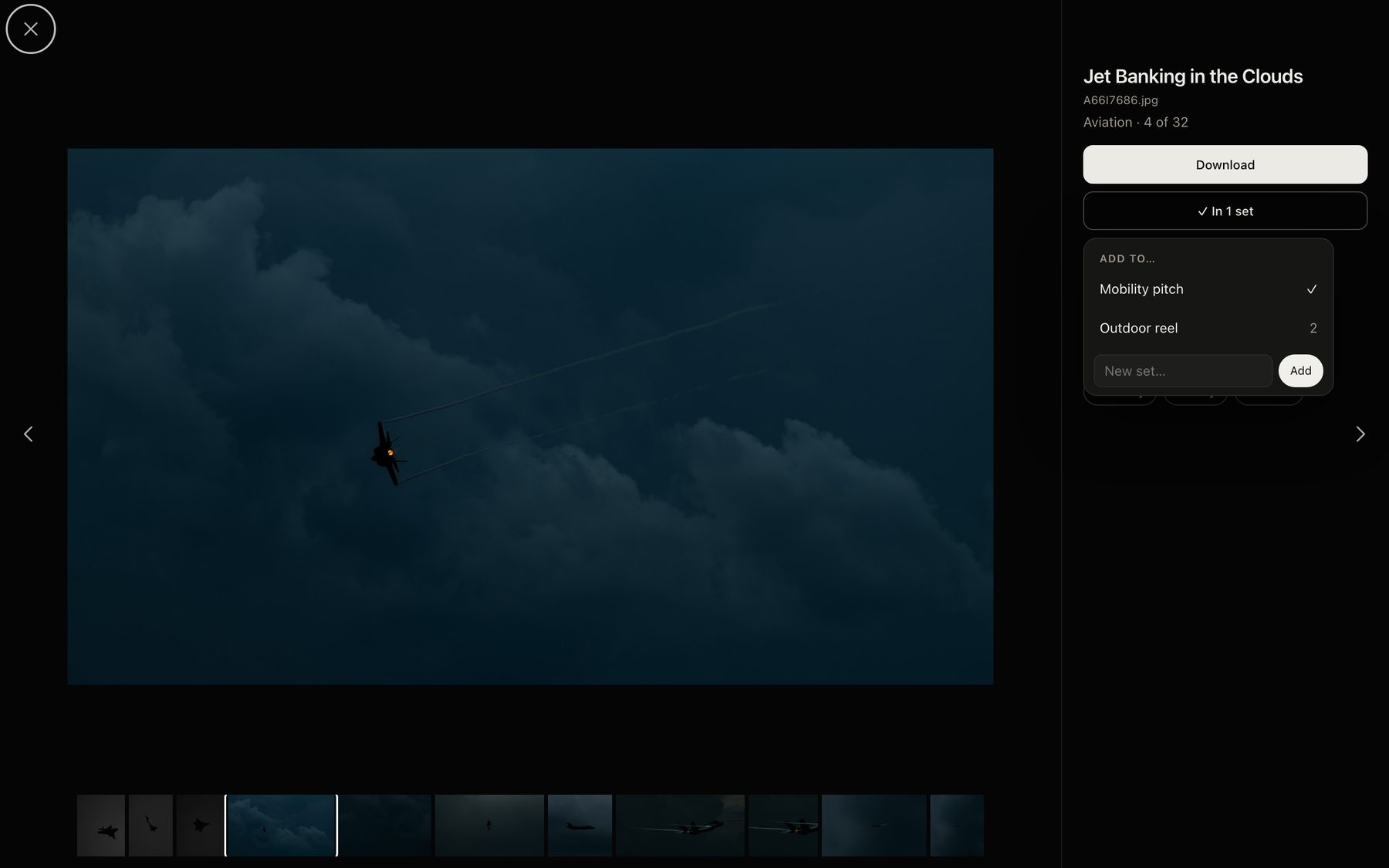
Opening a photo gives the picture almost the whole screen and keeps everything else one step away.

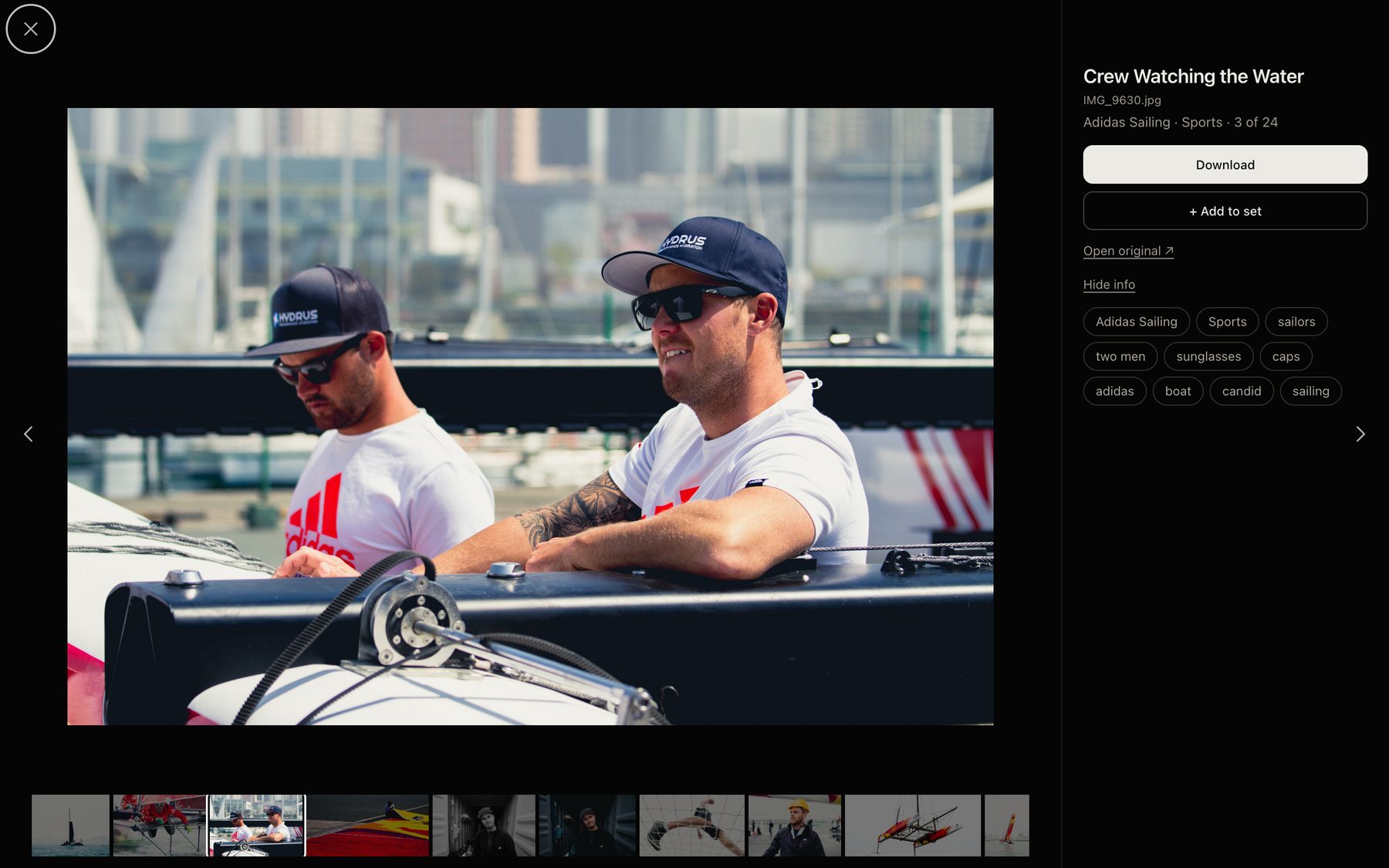
  • Instant, then sharp. The preview appears immediately while the full-resolution file loads in behind it, and the neighbours are preloaded.
  • Keyboard, swipe and filmstrip. Arrow keys, Esc, and 'i' for the info panel on desktop; swipe on touch; a filmstrip shows where you are in the sequence.
  • Tags are links. Every tag, genre and collection in the panel starts a new search, so the viewer doubles as navigation.
Photo viewer with filmstrip, title, download and add-to-set actions

07

Select Many, Act Once

Choosing several photos is a mode, not a separate screen, so the grid stays where it is.

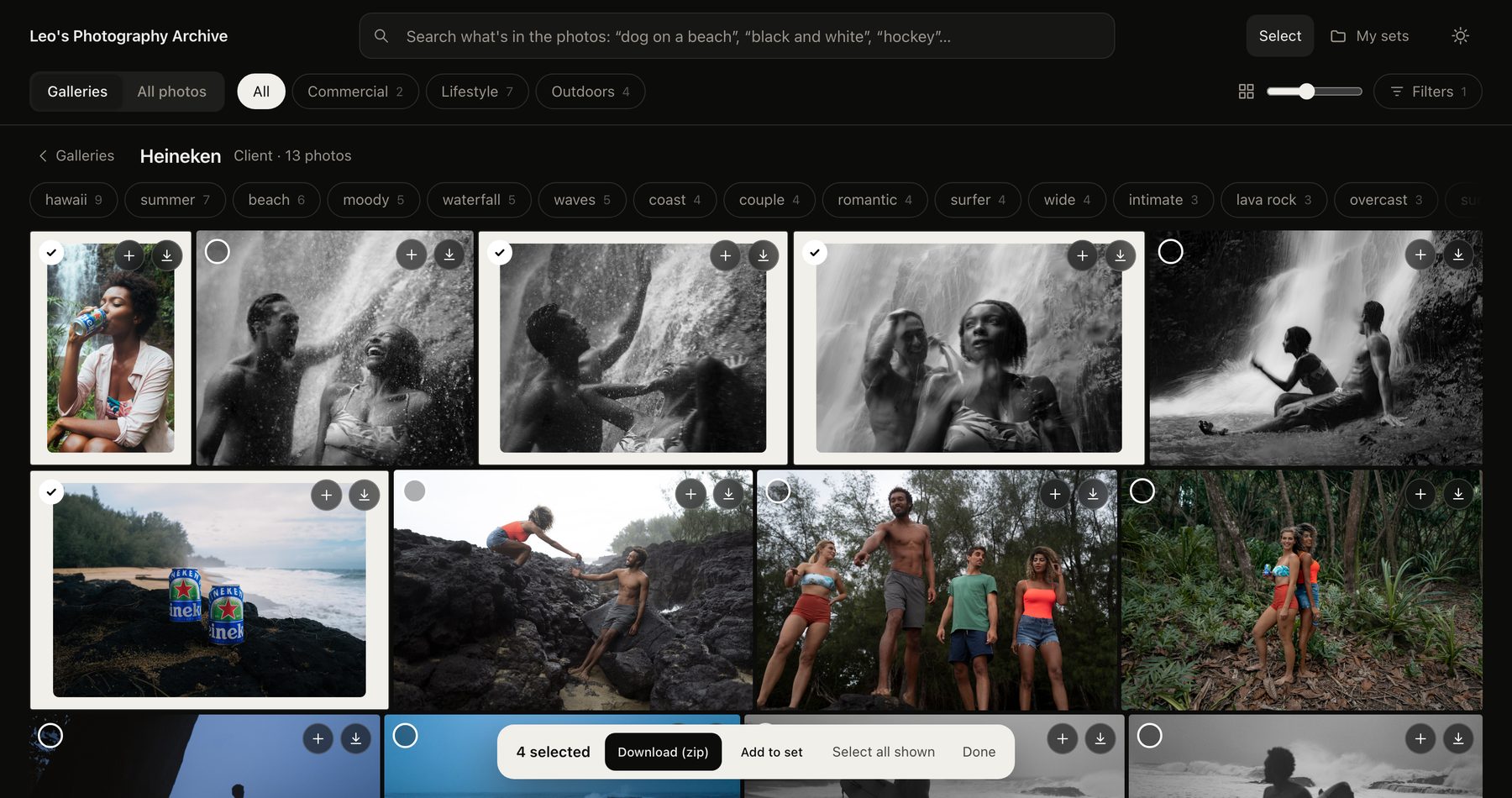
  • Selected photos shrink into a frame rather than only gaining a tick, so the selection is readable from across the room.
  • A floating action bar shows the count and offers Download (zip), Add to set, Select all shown and Done.
  • Zips are built in the browser. No server and no library; a small store-only zip writer is enough because JPEGs don't compress, with progress shown while it works.
Select mode with four photos ticked and a floating action bar

08

Sets Without Accounts

Visitors can gather photos for a pitch or a mood board without signing up for anything.

  • One tap to add. A small menu anchored to the button lists the sets with counts and a field for a new one; on phones it becomes a bottom sheet.
  • Local by design. Sets live in the visitor's own browser. That keeps the site free of accounts and tracking, at the cost of portability, which the next two screens address.
  • A saved marker on every photo that is in any set reminds visitors what they've already collected.
Add-to-set menu anchored to the button, listing two sets with counts and a new-set field

09

Put The Set In Order

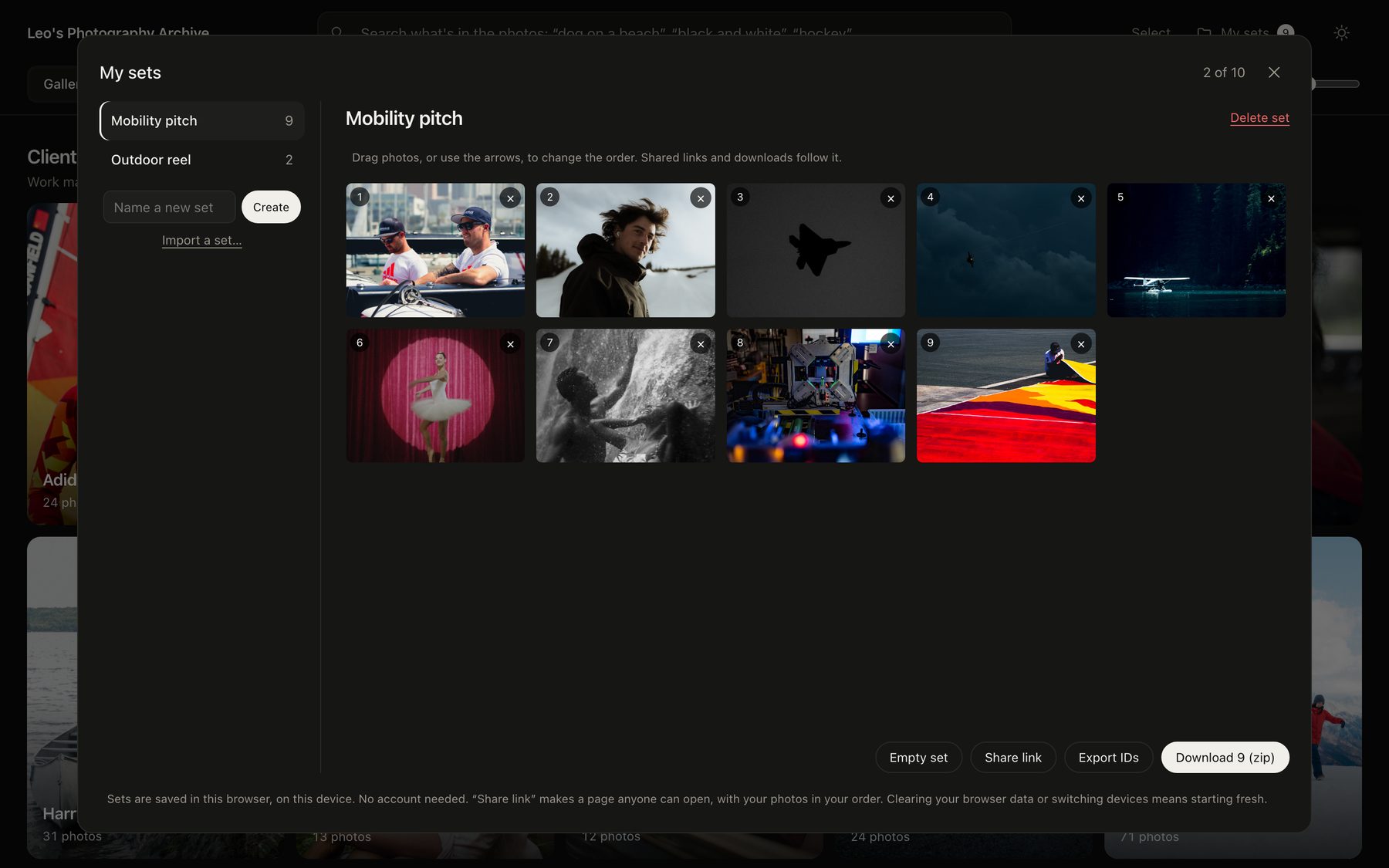
A set is only useful if its order is the story. Reordering was designed to work with a mouse, a finger or a keyboard.

  • Drag to reorder, arrows as the fallback. Dragging is quick on desktop; the small arrows on each photo work on touch and with the keyboard.
  • Numbered positions make the order explicit, and the same order carries into shared links and downloads.
  • Roomy dialog. It was widened and given a self-contained scroll area so large sets lay out in clean rows instead of overlapping.
My sets dialog with nine numbered photos, reorder hint and Share link, Export IDs and Download buttons

10

Share A Set As Its Own Page

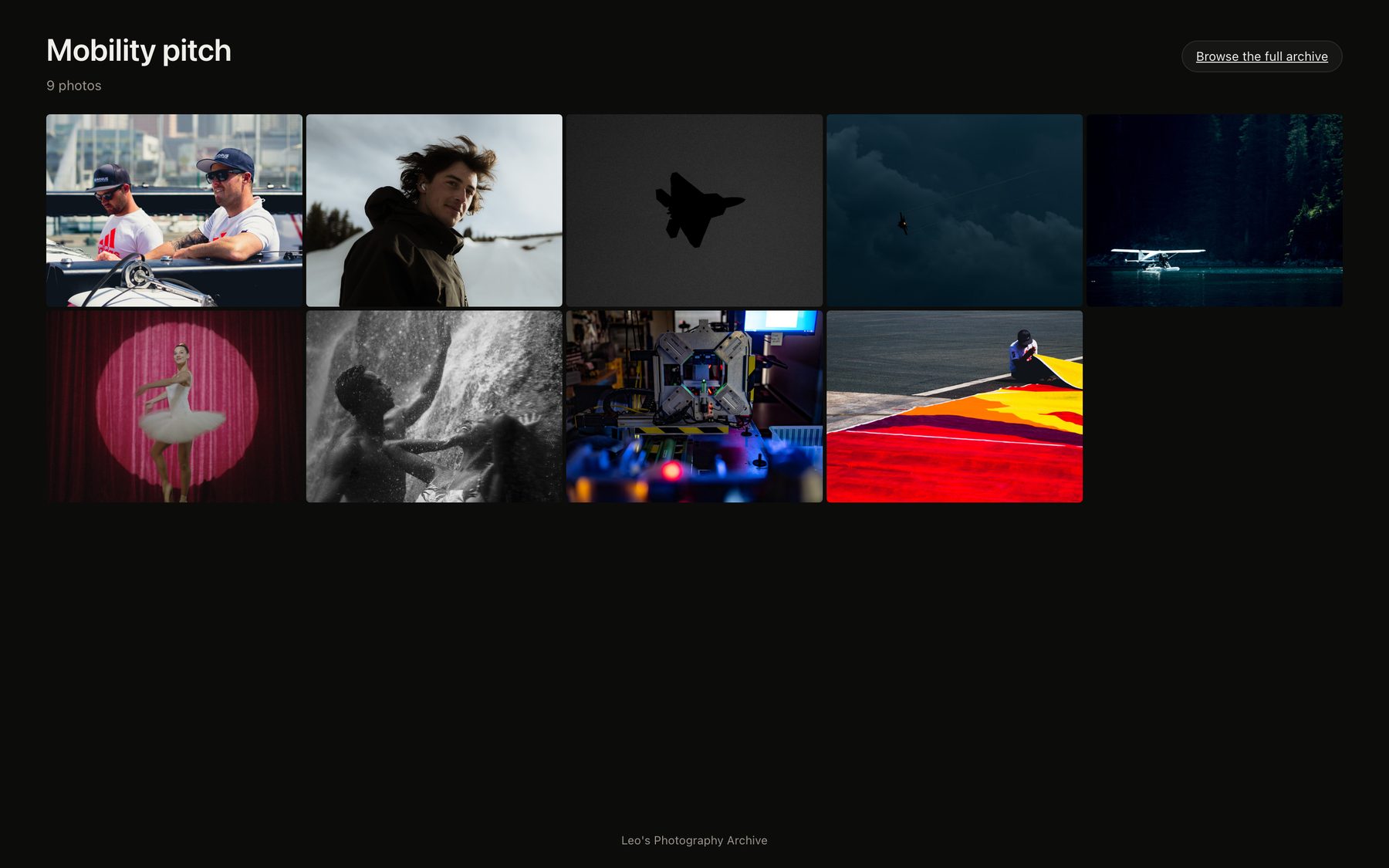
A set can be sent to anyone as a link. With no backend, the link itself carries the set.

  • The link is the data. The set's name and photo IDs, in order, are encoded in the address; a lightweight page rebuilds a clean gallery from it.
  • Made for the recipient. No navigation clutter: the title, the photos in the sender's order, a full-screen viewer with per-photo download, and one link back to the archive.
  • Portable. Import and Export let a set move between browsers, and the same ordered IDs can feed a portfolio on another site without rehosting images.
A shared set page showing nine photos in order

Small screens

The Same Ideas, One Thumb Wide

The layout reflows rather than shrinks. Cards stack into single posters, filters collapse, touch targets grow to 44 pt, the add-to-set menu becomes a bottom sheet and the viewer stacks the photo above its actions.

Mobile galleries view
Cards stack into one large poster per row.
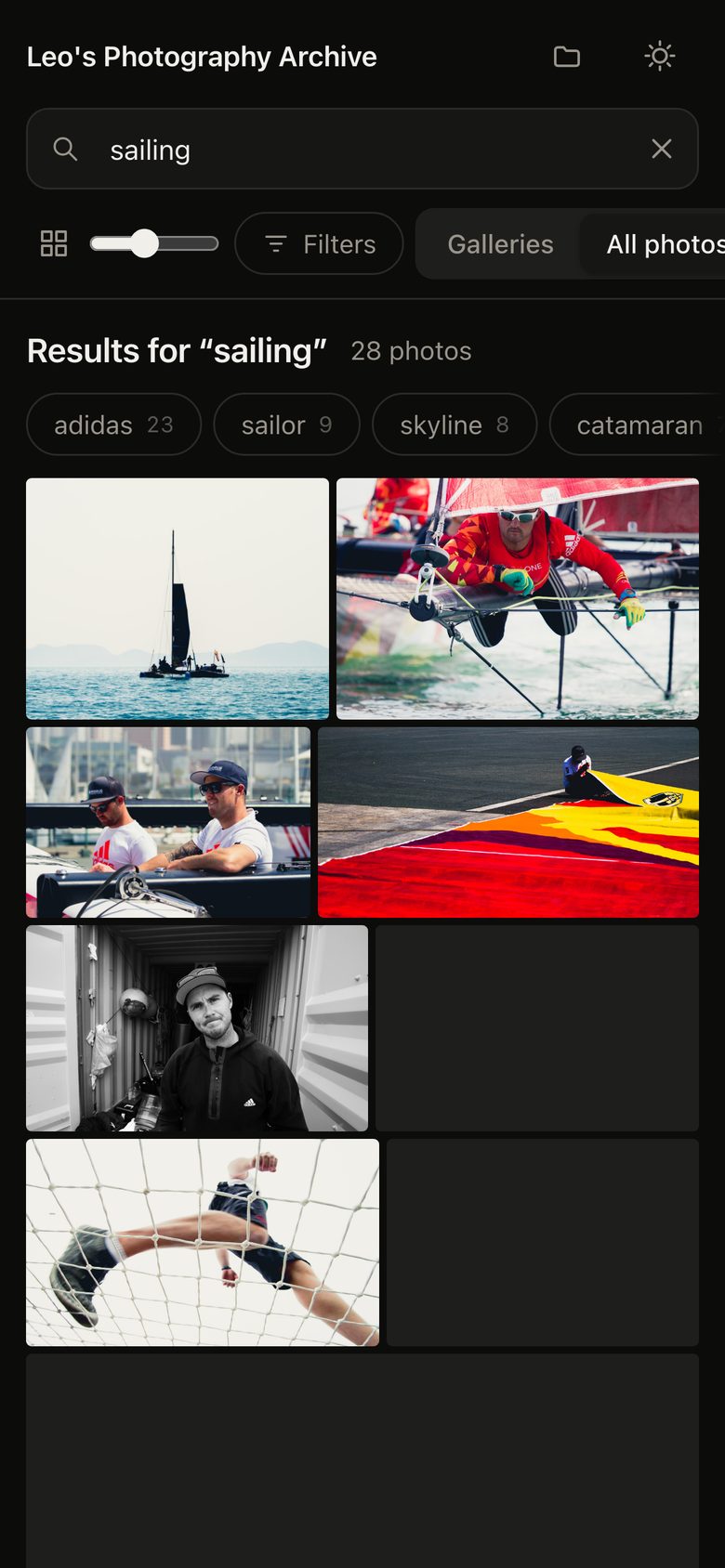
Mobile search results
Search and filters stay reachable; photos keep their proportions.
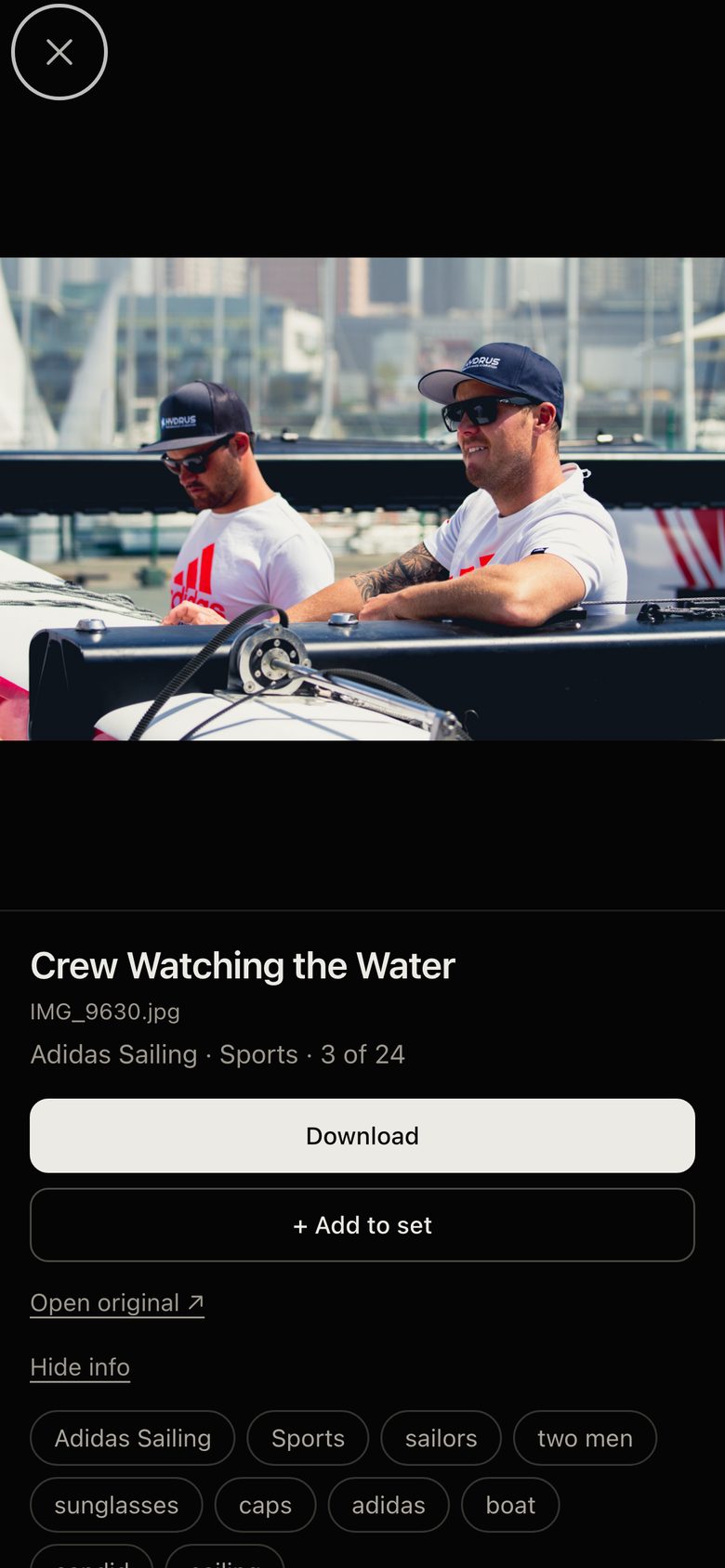
Mobile photo viewer
Photo on top, actions and tags below, swipe to move on.
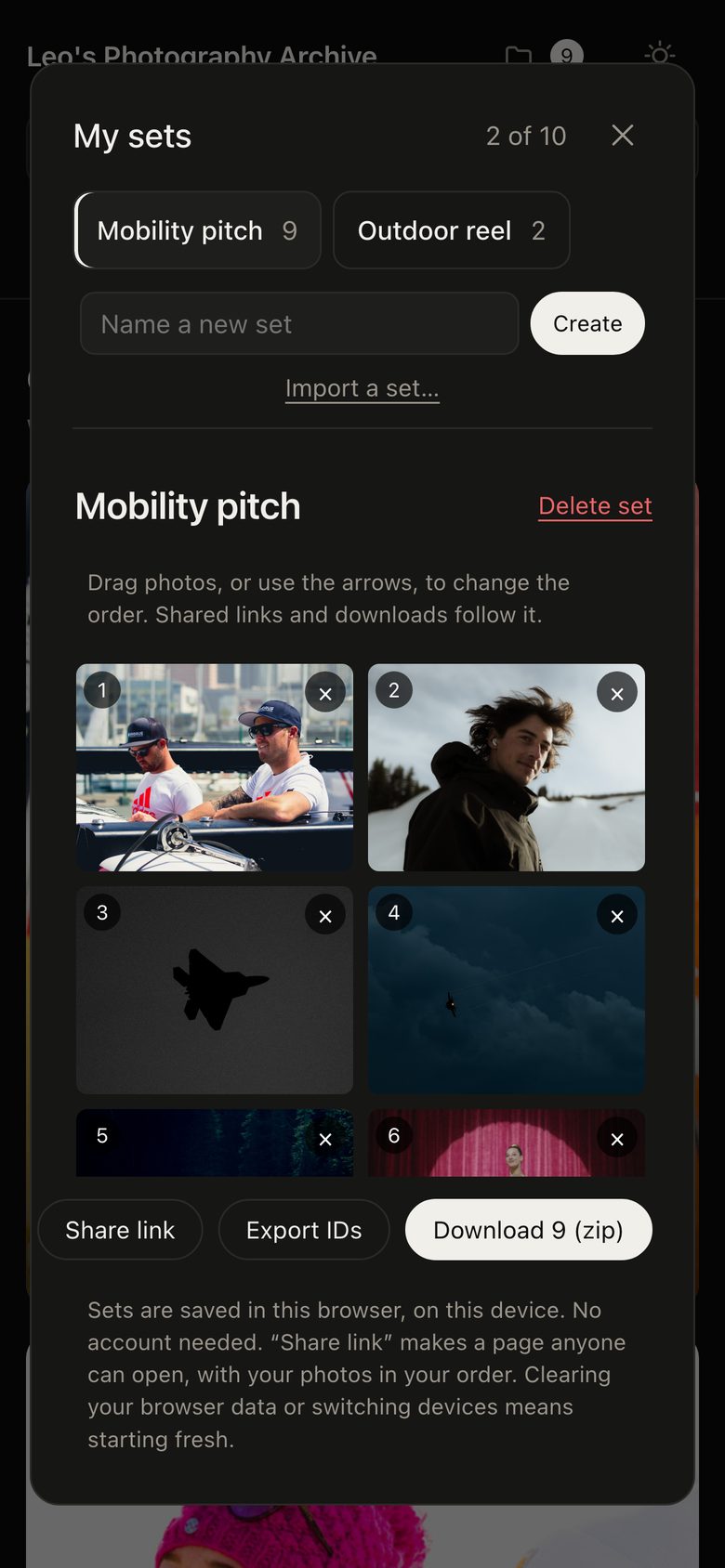
Mobile sets dialog
Sets become a horizontal strip above the photo grid.
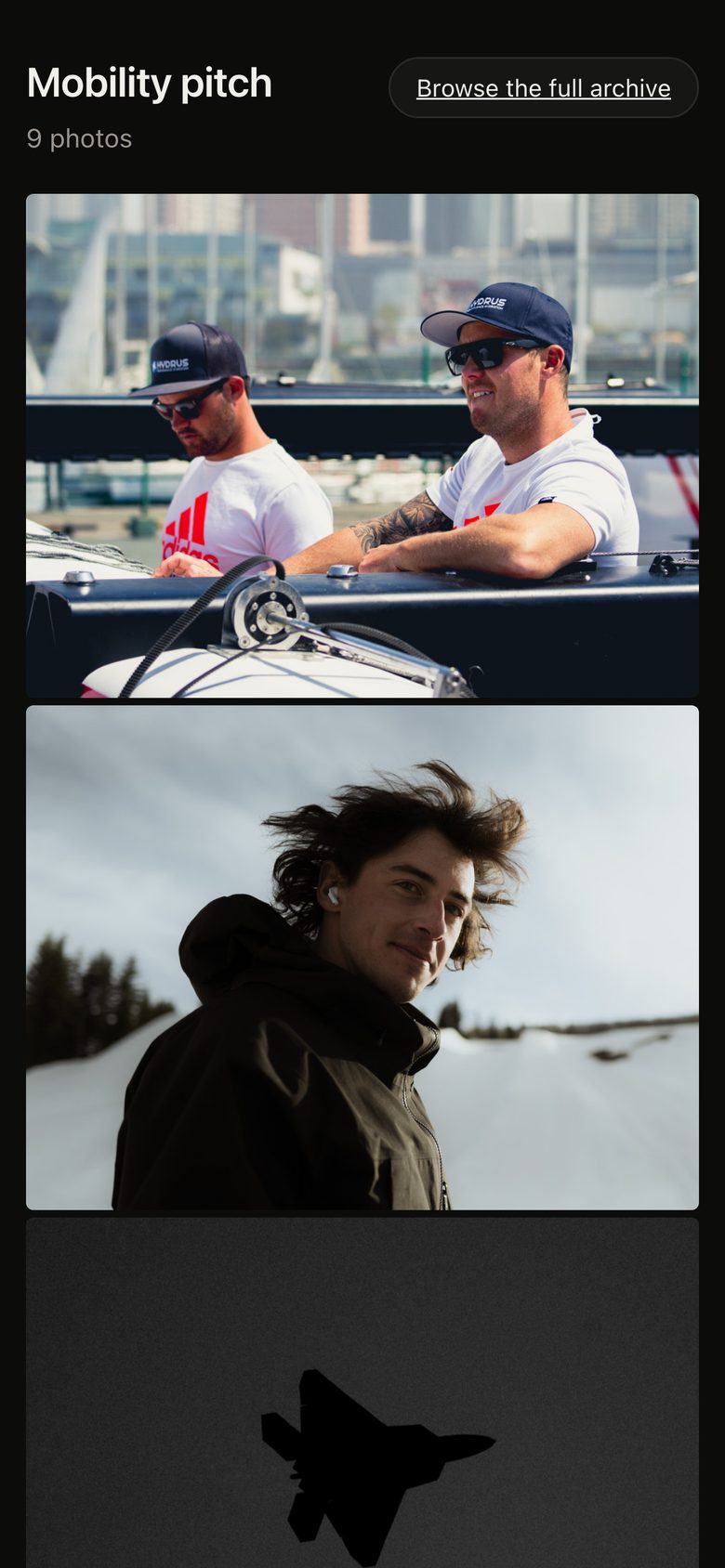
Mobile shared set
A single column of photos, ready to scroll and share.

Iteration

What Changed After Use

  • Sets were too cramped. With a 45-photo set the thumbnails overlapped inside a small dialog. The dialog was enlarged, the grid given its own scroll area and fixed tile proportions, and mobile gets a smaller grid.
  • Order mattered. Sets began as unordered collections. Drag-and-drop with arrow buttons and numbered positions turned them into sequences, and shares and downloads now follow that order.
  • Local storage is fragile. Safari can clear a site's stored data, and each web address keeps its own sets. Export and Import (JSON or a shared link) were added so a set can be saved, moved or published elsewhere.
  • A stacking bug in search. The first suggestion was hidden behind the genre chips. Raising the search field above the filter row fixed it.

Under the hood

Craft Decisions

URL As State

Query, collection, filters and the open photo are stored in the address hash, so the back button, bookmarks and links all just work.

No Backend

A static site with a generated data file. Sets stay in the browser; shared sets travel inside the link.

Performance

Lazy-loaded thumbnails that fade in, full-resolution images fetched only in the viewer, neighbours preloaded.

Accessibility

Labelled controls, status announcements for toasts and result counts, focus returned after the viewer closes, full keyboard paths, reduced-motion support.

Private Admin Mode

Add, tag, move and remove tools appear only when the archive runs on the photographer's own computer; the public site never ships them.

Own Zip Writer

Multi-photo downloads are zipped in the browser with a small store-only writer instead of a dependency.